Why a Button Label Changes the Feel of a Choice
Understand button label meaning for continue, submit, and save, so you can judge the likely next step without mistaking a label for a service promise.
A button label changes the feel of a choice before anyone clicks it. On a public service page, “Continue” suggests another screen, “Submit” suggests sending information, and “Save” suggests keeping work for later. These words set expectations, but they do not establish what the service will do next.
That gap can leave you unsure whether a draft will disappear or a request has been sent. Read the label as a clue, then use the surrounding instructions and any confirmation to understand what happened. If the service does not explain its behavior, the wording alone cannot settle it.
“Continue” signals movement, not a specific destination
“Continue” usually signals movement through a process, not a final decision. It does not say where you are going. The next screen might request another detail, show a review, or begin a different task.
Check the page heading and the instruction above the button. A heading such as “Review your answers” suggests what the next screen concerns, while a note about required fields may explain what you need to do first. Neither clue proves whether information has been saved or sent.
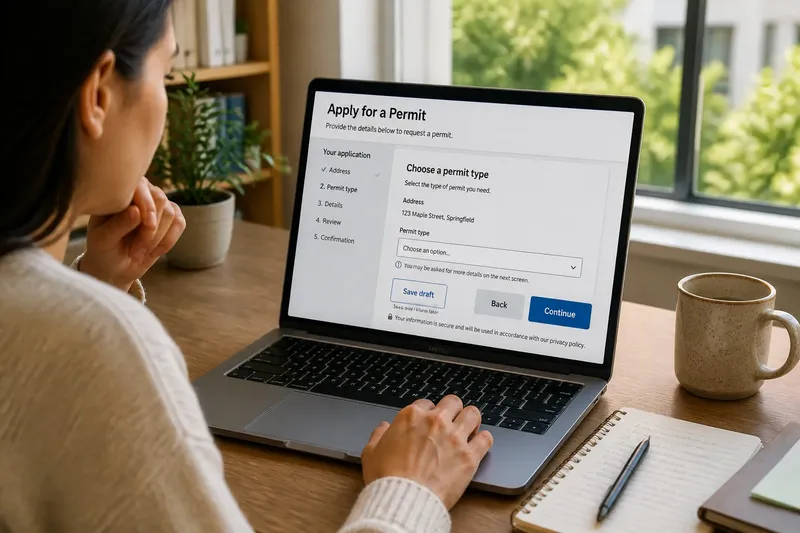
Imagine you are filling out a city permit request, have entered a street address, and see a button labeled “Continue” below the heading “Choose a permit type.” The heading indicates that choosing a type is the apparent next task; the label itself does not confirm that the address was saved, and the actual service behavior remains unknown unless the page or a later confirmation states it.
“Submit” suggests sending information, not approval
“Submit” generally signals that information is being handed to a service or organization. It can sound final, but the label does not tell you whether the page will show a review first, send the form immediately, or require another action afterward.
Look for a nearby sentence that describes the immediate result, such as “Your answers will be sent to the housing office.” Check whether there is a review option or a notice about what happens after sending. Do not treat the button label as proof that a request has been received, accepted, or approved.
A confirmation message may say that information was received, while a decision may come later. Those are distinct outcomes, so rely on the service’s own wording rather than inferring approval from a successful submission message.
“Save” does not explain how a draft is kept
“Save” commonly suggests that your work will be kept. By itself, it does not say where it is kept, whether you need an account, or whether you can return later. The actual rules depend on the service.
Read any nearby note about drafts, signing in, or returning later. A message such as “Save and return later” gives more context than “Save” alone, but check for a confirmation after acting. “Draft saved” indicates that the service displayed a save confirmation; it does not establish how long the draft remains available.
If the form contains information you cannot easily recreate, avoid leaving the page until the service gives a clear indication that saving occurred. For details about access or retention, consult the service’s instructions or contact its support channel rather than guessing from the button text.
Button label meaning depends on the surrounding clues
A button is one part of a page’s instructions. Read the heading, short explanation, field labels, and confirmation message together, much as you would use a street sign alongside a route marker: each clue helps interpret the others, but none promises every condition ahead.
- Check the heading: If it names a next task, such as “Choose a permit type,” then expect that task to be relevant; if it does not, look for a nearby instruction before inferring the destination.
- Check the action’s object: If the button says “Submit your application,” then the application is the apparent object being sent; if the object is missing, read the explanatory text rather than assuming what will be sent.
- Check for a review option: If the page offers a review screen, use it to inspect your entries before sending; if no review is described, do not assume you will get one.
- Check the save message: If a confirmation says “Draft saved,” treat that as an indication that the service reports a save; if there is no confirmation, wait for clearer feedback or consult the service’s instructions.
- Check what happens after submission: If the page describes a receipt or later decision, distinguish that outcome from sending the form; if it gives no explanation, do not interpret submission as approval.
- Check whether the next step is named: If a label says “Continue to payment,” expect payment to be the apparent destination; if it only says “Continue,” use the page context and avoid assuming more than it reveals.
What do common button labels actually tell you?
Does “Continue” mean my information has been sent?
Not by itself. It usually signals that you are moving onward, so look for explicit wording that says information is being sent or filed.
Is “Submit” the same as approval?
No. It commonly indicates that information is being delivered for processing, not that an organization has accepted the request or granted what you asked for. Check for a separate decision notice.
Does “Save” mean I can come back later?
Not necessarily. Look for an explicit note about returning, signing in, or how a draft is kept; the label alone does not settle those details.
What should I do if two buttons seem to do the same thing?
Compare the verbs and read the instructions around each button: one may move to another screen while another sends or preserves information. If the distinction remains unclear, seek clarification from the service instead of choosing based on which label sounds more reassuring.
Separate the next step from the final outcome
Look for the object of the action. “Submit your application” identifies what is apparently being sent. “Save this draft” suggests that current work is being kept. “Continue to payment” names a destination more clearly than “Continue” by itself.
Also distinguish a next step from an outcome. “Continue to review” describes where the button appears to lead; “Your application is approved” states a decision. A button label may support an inference about the next screen, but it cannot establish the decision without a clear statement from the service.
When reading button label meaning on government, school, library, and community-service pages, treat the verb as a useful signal, not a promise about the software. The most useful habit is to look for an explicit description of what happens after the action—and to keep uncertainty in view when the service provides none.